
How to Uninstall the Agent in Installation And Deployment with AnySecura | User Guide
This guide will walk you through the process of removing the AnySecura agent from a computer, ensuring you can cleanly manage your deployment. You'll learn the different methods available, whether the agent is online or completely offline.
Understanding these steps helps you maintain control over your environment, and we'll also clarify the important distinction between simply uninstalling the agent and fully deleting it from your AnySecura console.
2.9.1 Uninstalling the Agent
When a computer no longer needs the agent module, the administrator can uninstall it. There are two uninstallation methods:
Console Uninstallation
For online agents:
Select Control → Uninstall Agent in the console to remove the agent module. After uninstallation, the agent will no longer run. If you want to use the agent module on this computer again in the future, you must reinstall it.
For offline agents:
You can generate an uninstallation tool in the console and run it on the agent machine to uninstall. The steps are as follows:
1) In the console, go to Tools → Agent Tools → Agent Offline Utility.
2) Select Permanently Uninstall Agent, then click Next.
3) Configure parameters (execution count, valid time, operation password, export path, program name), then click Finish to export an executable (.EXE) file.
4) Send the generated executable to the agent machine and run it to perform the uninstallation.
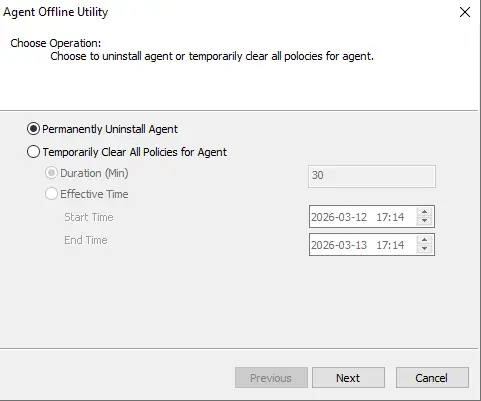
Agent Tool Uninstallation
For completely offline machines that cannot connect to the server, follow these steps:
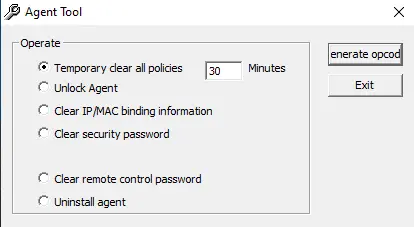
1) On the agent machine, go to Start → Run, enter the command agt3tool ocularadv, and open the agent tool.
2) Select Uninstall Agent, then click Generate Operation Code.
3) A Opcode Validation dialog will appear — report the original operation code to the administrator.
4) In the console, the administrator goes to Tools → Agent Tools → Confirmation Code Generator, enters the agent's operation code, and the system will parse the operation and corresponding agent information.
5) The administrator confirms and clicks Generate Confirmation Code.
6) The administrator provides the confirmation code to the agent, who enters it to execute the specified operation.
Note:
- Difference between Uninstalling and Deleting a Agent: Uninstalling a Agent – Only removes the agent module from the computer. The license count remains unchanged, and the computer will still appear in the console with its logs accessible;Deleting a Agent – Includes uninstalling the agent and reducing the license count.
2.9.2 Uninstalling Server and Console
First, close the AnySecura server, console, and other related applications. Then, go to the Start menu, select "All Programs → AnySecura → Uninstall AnySecura" to uninstall. Alternatively, you can uninstall via "Control Panel → Add/Remove Programs" by selecting AnySecura.